
Account(账户)
When you sign up for eazyBI then new trial account will be created for you.
当我们登出eazyBI人时候,一个试用的账户将会为你创建
One eazyBI account contains a set of data which can be analyzed by one or many account users. In any given time, you can work with one selected current account (you will see the current account on top right header menu). You can select current account either from Home tab or from account selection drop-down in the top right header menu.
一个eazyBi账户包含一组数据,这些数据能够通过一个或者多账户用户用来分析;在特定的时间里,我们可以使用一个选定的当前帐户(我们可以在右上角的菜单 中查看到当前帐户)。我们也可以从“首页”选项卡或“右上标题”菜单中的“帐户选择下拉”中选择当前帐户。
After the end of the 30-day trial, you will need to select account plan. You can select either private plan (only account users can access account data) with monthly subscription or you can select public plan if account contains public data and any anonymous user can access it.
在30天试用结束后,您将需要选择帐户计划。您可以选择私人计划(只有帐户用户可以访问帐户数据)每月订阅或您可以选择公共计划,如果帐户包含公共数据,任何匿名用户可以访问它。一个eazyBI帐户(Account)包含一组数据,可由一个或多个帐户用户进行分析。在任何给定时间内,您都可以使用一个选定的当前帐户(您将在右上方的标题菜。
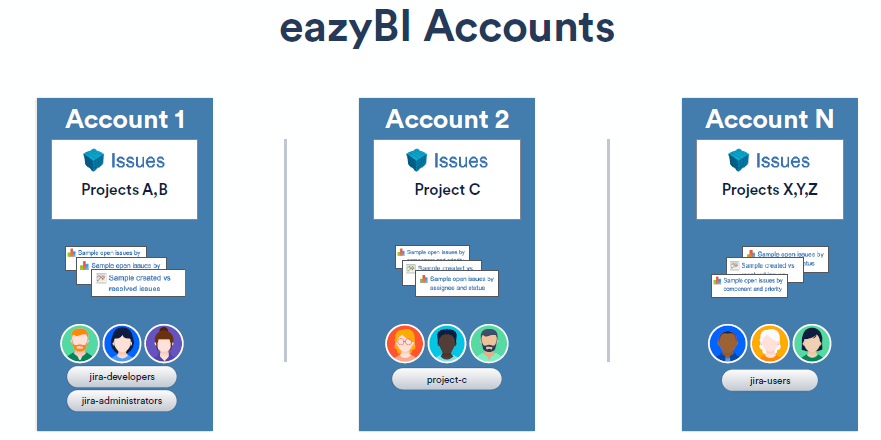
在eazyBI插件中,您可以创建一个或多个帐户。 一个eazyBI帐户包含一组导入的Jira项目数据,可以由eazyBI帐户用户访问(访问eazyBI帐户数据与Jira安全方案分开管理)。
如果您有几个Jira项目,并且不需要限制不同Jira用户组对eazyBI报告的访问,那么您只能使用一个eazyBI帐户并导入此帐户中的所有Jira项目。
如果您有大量的Jira项目和大量的Jira问题(超过100,000),那么建议在每个eazyBI帐户中拥有多个eazyBI帐户并导入相关的Jira项目集。由于每个eazyBI帐户将导入的Jira数据存储在单独的数据库方案表中,因此它也可以帮助eazyBI报告性能优化。
Account users(帐户用户)
创建eazyBI帐户(Account)的 用户(user) 是该帐户的所有者。所有者拥有此帐户的所有权利,还可以向帐户添加其他用户(User)。如果是私人帐户,则只有指定的帐户用户才能访问帐户数据。
| Panel | ||
|---|---|---|
| ||
|
Account users
User who creates eazyBI account is Owner of the account. Owner has all rights for this account and also can add additional users to account. In case of private accounts only specified account users will have access to account data.
创建eazyBI账户的用户是这个账户的拥有者。拥有者对此账户有所有的权利,他能够增加额外的用户到此账户中。如果私人帐户的情况下,只有指定的帐户用户才有权限访问帐户中的数据。
Read more about adding additional account users to your account.
Source Data
After creating new account you need to import data which you want to analyze. There are two ways how to import data - either upload source data files or import data from source application for which eazyBI data import is defined.
在创建一个新账户后,我们需要导入数据以此来对它进行分析;有两种方式来导入数据,上传一个源数据文件或者从源应用程序中导入数据;
Source Files
Currently import from Excel and CSV format files are supported (other formats will be supported later, please write feedback if you want support of some specific format). After upload of source data file you need to define mapping from source file columns to cube dimensions and measures (see Cubes, Dimensions and Measures below).
Source Applications
Import from source applications provides faster way for data import and start of data analysis. For each source application data will be uploaded into predefined cube structure and default analysis reports will be created. After initial upload regular new data import will be scheduled automatically (for paid subscription plans).
See available source applications that eazyBI is integrated with.
Cubes
Imported data are stored in multi-dimensional data cubes. Cubes contain fact data that are divided by dimensions and each detailed fact “cell” contains measure values about that fact.
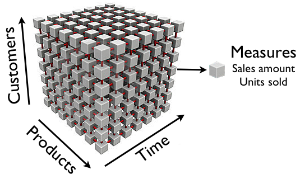
This is example of Sales cube that has Customers, Products and Time dimensions and has measures Sales amount and Units sold. Each detailed cube “cell” contains sales amount and units sold for particular product, customer and time period:
It is easy to illustrate cube with three dimensions but you can have as many dimensions and as many measures as you need in one data cube.
All measures in the same cube share the same dimensions. If in one account you want to store different types of measures that do not share the same dimensions then you can create several different cubes.
Dimensions
Typical cube dimensions are Time, Customers, Products, Locations, Employees, Projects etc. Use dimensions that are best suited to your business domain.
典型的立方维度是时间、客户、产品、地点、雇员、项目等。最适合您的业务领域的使用维度。
Source Data(来源数据)
创建新帐户后,您需要导入要分析的数据。导入数据有两种方法 - 上传源数据文件或从定义了eazyBI数据导入的源应用程序导入数据。
Source Files(源文件)
目前 支持从Excel和CSV格式文件导入 。上传源数据文件后,您需要定义从源文件列到多维数据集维度和度量的映射(请参阅 下面的多维数据集,维度和度量)
Source Applications(来源应用)
从源应用程序导入提供了更快的数据导入和数据分析开始方式。对于每个源应用程序,数据将上传到预定义的多维数据集结构中,并将创建默认分析报告。
初始上传后,将自动安排定期新数据导入。
Cubes(数据立方体)
导入的数据存储在多维数据 数据立方(Cubes)。多维数据集包含按维度(Dimensions)划分的事实数据,每个详细事实“单元格(Cell)”包含 有关该事实的度量(measure)值。
这是具有客户(Customer),产品(Products)和时间(Time)维度的销售多维数据集的 示例,并且具有销售额和销售单位的度量(measure) 。每个详细的立方体(Cubes)“单元格(Cell)”包含特定产品,客户和时间段的销售额和销售单位:如右图
它很容易说明具有三维的立方体,但您可以在一个数据立方体中拥有所需数量的多个维度和多个度量。
同一个多维数据集中的所有度量共享相同的维度。如果在一个帐户中您想要存储不共享相同维度的不同类型的度量,则可以创建多个不同的多维数据集
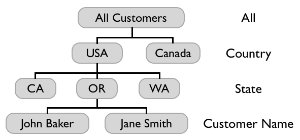
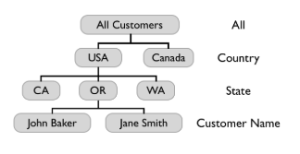
All measures are automatically aggregated (typically as sum of detailed level values) in upper hierarchy levels. E.g. looking at Sales amountmeasure at Country level will give total sales amount for this country.
Typically each dimension has All level with one All member which aggregates all dimension members.
When you upload source file with date (or date & time) column then automatically time hierarchy will be constructed for corresponding dimension. Time hierarchy will have Year, Quarter, Month and Day levels which can be used to get totals of measures at selected time period level.Measures(度量,测量)
Measures typically are integer or decimal values that can be accessed either at detailed dimension member level or can be aggregated at higher dimension levels. Typical measure examples could be Sales amount, Units sold, Cost amount, Transactions count etc.
度量通常是整数或十进制数值,这些值可以在详细维度成员级别中访问,也可以在更高维度级别进行聚合汇总。典型的测量实例可以是销售金额、单位销售、成本金额、交易计数等。
Calculated members(计算成员)
Sometimes you want to calculate new measures from other existing cube measures - these are called calculated measures. For example, you could define Profit calculated measure as Sales amount measure minus Cost amount measure. And then you could also define Margin % calculated measure as Profit measure divided by Sales amount measure (and display result as percentage).
有时候我们需要从其它已存储的度量立方中计算新的度量,我们移之为 calculated measures.。例如,可以将利润计算的度量定义为销售金额度量减去成本金额度量。然后还可以定义利润率%的计算方法作为利润衡量除以销售金额测量(和显示结果为百分比)。
You can also define calculated members in other dimensions. For example, you could define in Customers dimension new calculated memberNorth America as sum of USA and Canada members.
Member(成员)
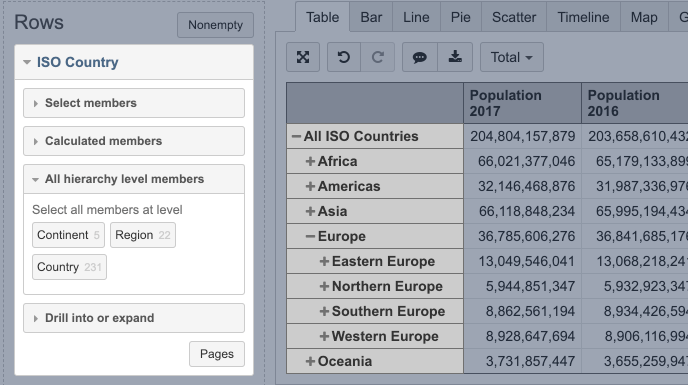
维度(dimension )中的任何项都是该维度的成员。每个维度还有一个名为“所有成员(All members)”的默认成员(default member),其中包括所有维度成员(其子项)。
例如,在国家/地区 维度中,每个国家/地区都是成员,每个大陆(某些国家/ 地区的组)都是成员,所有国家/地区 (所有维度成员的组)都是国家/地区 维度的成员。
展开时,每一行代表行中使用的维度的成员。
Measures(度量)
Measures(度量)简单的可理解为在一定维度中可以进行 计算的数据信息;比如在JIRA中,问题数字类、时间类等字段信息以及各类维度的统计数字值
度量通常是整数或十进制数值,这些值可以在详细维度成员级别中访问,也可以在更高维度级别进行聚合汇总。典型的测量实例可以是销售金额、单位销售、成本金额、交易计数等。
Properties(属性)
维度成员具有属性。属性的作用是保存有关特定成员的信息。属性可以是描述成员详细信息的任何内容例如,用户维度成员可以是人(用户),并且每个用户的属性可以是地址(字符串),年龄(数字),出生日期(日期)。在报表中,属性仅在特定用户级别显示。
Calculated members(计算成员)
有时候我们需要从其它已存储的度量立方(cube measures)中计算新的度量,我们称之为计算度量 (calculated measures).。例如,可以将利润计算的度量定义为销售金额度量减去成本金额度量。然后还可以定义利润率%的计算方法作为利润衡量除以销售金额测量(和显示结果为百分比)。
我们可以在其它的维度中定义计算成员(calculated members) ,例如,您可以在客户维度中定义新的计算成员美国北部作为美国和加拿大成员的总和。
Calculated member formulas are defined using MDX language. Basic arithmetic formulas can be created very easily but by learning other MDX functions you will be able to create any calculated members you need. Read more about creating calculated members.
计算成员的表达式是依据MDX语言标准的。可以很容易地创建基本的算术公式,但是通过学习其他MDX函数,您将能够创建所需的任何计算成员。
计算成员的表达式是依据MDX语言标准的。可以很容易地创建基本的算术公式,通过学习其他MDX函数,您将能够创建所需的任何计算成员。
MDX
MDX是一种多维eXpressions查询语言,允许您查询数据立方体并向多维数据集添加业务逻辑。您可以使用MDX定义新的计算成员,集或获取成员属性 。
Analyze data and create reports(分析数据和创建报告)
After importing data from source files or source applications you can go to Analyze tab and start to explore data in created cube. You can start creating table reports by dragging needed dimensions to columns, rows and pages and exploring your data at different dimension levels. After selecting needed data in table report you can switch to different chart reports to explore your data in more visual way.
在从源文件或源应用程序导入数据之后,可以转到“分析”选项卡,并开始在创建的多维数据集中浏览数据。您可以通过向列、行和页拖动所需的维度并在不同维度级别上查看数据来创建报表。在表报中选择所需的数据之后,您可以切换到不同的图表报表,以更直观的方式查看数据。
When you have created report layout that you want to use frequently you can save this report with given name. When later you will open saved report then you will get latest results from data cube using saved report layout.
当您创建要频繁使用的报表布局时,可以使用给定名称保存此报表。稍后您将打开保存的报表,然后使用保存的报表布局从数据立方体中获得最新结果。
Learn more about Analyze tab in Create reports and Create charts tutorial pages.
Feedback and support
If you have any problems, questions or suggestions for new eazyBI features then please use Contact support link from top Help menu. Or you can send e-mail directly to support@eazybi.com.在从源文件或源应用程序导入数据之后,可以转到“Analyze”选项卡,并开始在创建的多维数据集中浏览数据。您可以通过向列(columns)、行(Rows)和页(pages) 拖动所需的维度并在不同维度级别上查看数据来创建报表。在表报中选择所需的数据之后,您可以切换到不同的图表报表,以更直观的方式查看数据。
当您创建要频繁使用的报表布局时,可以使用给定名称保存此报表。稍后您将打开保存的报表,然后使用保存的报表布局从数据立方体中获得最新结果。